AirCheck User Manual
Complete guide to getting the most out of AirCheck.
Version 1.1.2
1. Introduction
What is AirCheck?
AirCheck is a plugin designed specifically for music producers and mixing engineers. It allows you to monitor audio directly through 60+ supported Bluetooth brands or stream to your phone — all within your DAW, without needing to change the DAW's audio output settings.
Key Features
-
✓
Instant Wireless Monitoring
In large projects, changing the DAW's output device is often time-consuming. With this plugin, you don't need to change your Preferences output.
-
✓
Synchronized Editing
No need to export to MP3 and check on a separate player. Check your music using AirPods directly from the DAW.
-
✓
Smart Mute
When the plugin is active, the DAW's main output is automatically muted to prevent audio interference.
-
✓
Automatic Sample Rate Conversion
Supports various project sample rates: 44.1kHz, 48kHz, 96kHz, and 192kHz.
-
✓
Cross-Platform Support
Available for both macOS and Windows.
-
✓
Mobile Streaming
Stream audio to your smartphone via Wi-Fi (LAN). Scan a QR code and listen in any browser—no app required.
-
✓
Professional Metering
Logic Pro-style metering panel with L/R Peak levels, Phase Correlation, and LUFS loudness measurement.
Applicable Scenarios
Quick monitoring references during arrangement and mixing.
Two Ways to Listen
AirCheck offers two listening modes. Use one or both depending on your setup.
Bluetooth Mode
Listen through 60+ supported Bluetooth brands connected to your computer.
How to use:
- Pair a supported Bluetooth device (AirPods, Beats, Sony, Bose, JBL, etc.) — see full list on product page — to your computer via System Settings.
- Open your DAW and load AirCheck on the master bus (or any track you want to monitor).
- AirCheck automatically detects your Bluetooth device — no driver switching needed.
- Press play in your DAW. Audio routes to your Bluetooth device instantly.
Latency: ~100ms (typically 80–150ms depending on device and codec). This is normal for Bluetooth audio.
Mobile Streaming Mode
Stream audio to your iPhone, iPad, or Android device over Wi-Fi. No app required.
How to use:
- Make sure your computer and phone are on the same Wi-Fi network.
- In AirCheck's interface, click the Start button in the Audio Streaming section.
- A QR code appears on screen. Scan it with your phone's camera.
- A web-based player opens in your phone's browser — tap play to start listening.
Latency: ~100ms (as low as ~60ms with 5GHz Wi-Fi). Up to 8 devices can listen simultaneously. No internet required.
Tip: You can use both modes at the same time — for example, monitor on Bluetooth headphones while your bandmate listens on their phone.
2. System Requirements
macOS
- OS Version: macOS 11 (Big Sur) or newer
- Plugin Formats: AU (Audio Unit) + VST3 + AAX (Pro Tools)
- Processor: Intel or Apple Silicon (Universal Binary)
Windows
- OS Version: Windows 10 or newer
- Plugin Formats: VST3 + AAX (Pro Tools)
Note: Pro Tools is supported via a code-signed AAX plug-in on both macOS and Windows (v1.1.1+).
3. Installation Guide
macOS
- 1. Download the AirCheck installer (.pkg).
- 2. Double-click to run the installer.
- 3. Follow the on-screen instructions to complete the installation.
- 4. Restart your DAW.
Installation Paths (system-level, requires admin password):
AU: /Library/Audio/Plug-Ins/Components/AirCheck.component
VST3: /Library/Audio/Plug-Ins/VST3/AirCheck.vst3
AAX: /Library/Application Support/Avid/Audio/Plug-Ins/AirCheck.aaxplugin
Windows
- 1. Download the AirCheck installer (.exe).
- 2. Run the installer.
- 3. Select the installation location (default recommended).
- 4. Restart your DAW.
Installation Paths:
VST3: C:\Program Files\Common Files\VST3\AirCheck.vst3
AAX: C:\Program Files\Common Files\Avid\Audio\Plug-Ins\AirCheck.aaxplugin
Note: The installer will automatically download and install Microsoft WebView2 Runtime if it is not already present on your system. This component is required for the plugin UI. If installing on a computer without internet access, please download WebView2 separately beforehand.
4. DAW Compatibility
| DAW | macOS | Windows |
|---|---|---|
| Ableton Live | ✓ | ✓ |
| Logic Pro | ✓ | - |
| Reaper | ✓ | ✓ |
| FL Studio | ✓ | ✓ |
| Cubase | ✓ | ✓ |
| Pro Tools | ✓ | ✓ |
| Studio One | ✓ | ✓ |
| GarageBand | ✓ | - |
FL Studio Notes
FL Studio supports AirCheck as a VST3 effect. Insert it on the Mixer track where you want Bluetooth monitoring. On Windows, make sure your ASIO driver is configured (see Troubleshooting).
Reaper Notes
Reaper supports both AU (macOS) and VST3 formats. AirCheck appears under Sugoi in the FX browser. If you don't see it, run a VST3 rescan from Reaper Preferences → Plug-ins → VST.
5. Interface Overview
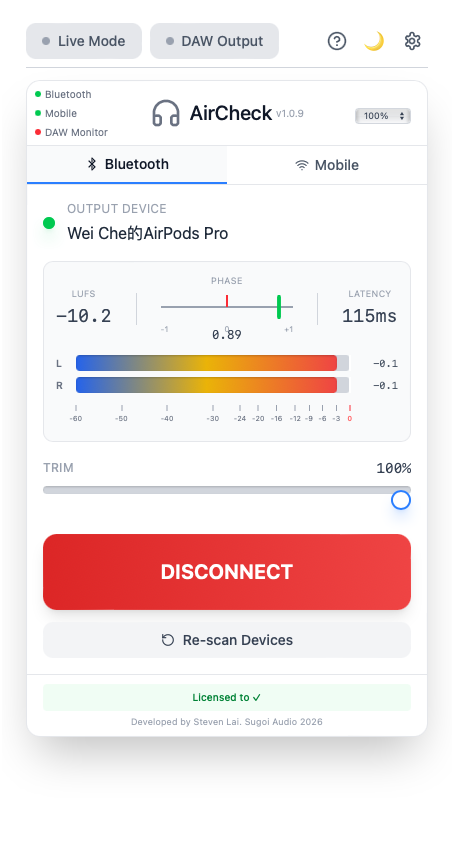
Bluetooth Mode
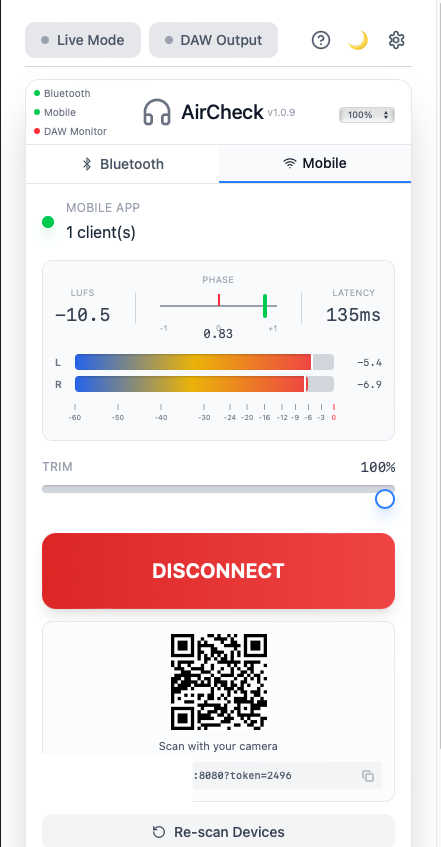
Mobile Streaming Mode
Top Bar
- Live Mode: Toggles low-latency mode. OFF (default) provides stable monitoring at ~100-120ms. ON uses AI processing to reduce latency to ~80-100ms.
- DAW Output: Controls whether audio also plays through your DAW's master output. OFF = audio only through Bluetooth/Mobile. ON = audio through both.
- Help (?): Opens the help guide.
- Theme (Moon icon): Toggles between dark and light mode.
- Settings (Gear icon): Opens plugin settings.
Note: Live Mode may cause slight audio instability depending on system load. We recommend keeping it OFF for general monitoring.
Header & Status Indicators
The header shows the AirCheck logo, version number, and a volume dropdown (0%-100%). On the left side, three status dots indicate connection states:
Two Modes: Bluetooth & Mobile
AirCheck has two tabs at the top of the main panel. Switch between them depending on your monitoring method.
Bluetooth Tab
- OUTPUT DEVICE: Shows the name of the connected Bluetooth device (e.g., "AirPods Pro"). A green dot indicates it is connected.
- DISCONNECT / CONNECT: Click to disconnect or reconnect your Bluetooth device.
- Re-scan Devices: Scans for available Bluetooth audio devices.
Mobile Tab
- MOBILE APP: Shows the number of connected clients (e.g., "1 client(s)").
- QR Code: Scan with your phone camera to open the web-based audio player. Your phone and computer must be on the same Wi-Fi network.
- URL: The streaming address (e.g., :8080?token=xxxx). Click the copy icon to share.
- DISCONNECT: Stops the streaming session.
- Multi-Device: Up to 8 devices can connect simultaneously.
- Supported Browsers: iOS Safari, Android Chrome, desktop browsers (Chrome, Safari, Firefox, Edge).
iOS Users: Use Safari for best results. The player includes silent audio bypass to work even when your iPhone's mute switch is on.
Metering Panel
The metering panel is displayed in both Bluetooth and Mobile modes, providing real-time audio analysis.
- LUFS: Short-term loudness measurement for streaming compliance.
- PHASE: Stereo phase correlation meter from -1 (out of phase) to +1 (mono). Values above 0 indicate a healthy stereo signal.
- LATENCY: Real-time audio latency in milliseconds.
- L / R Peak Meters: Stereo peak level meters with dB scale (-60 to 0 dB) and dB readout on the right side.
Peak Meter Color Guide:
TRIM
Adjusts the output gain from 0% to 100%. Use this to fine-tune the monitoring volume without changing your system or DAW volume. Default is 100%.
6. Reference Tracks New in v1.1.0
AirCheck includes a built-in reference track system that lets you A/B compare your mix against professional references — without leaving your DAW or opening another player.
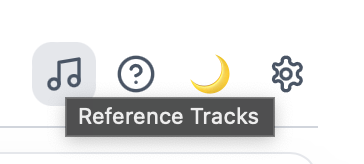
Click the music note icon in the toolbar to open the Reference Tracks panel.
6.1 Adding Reference Tracks
There are three ways to load a reference track:
-
✓
Drag & Drop
Drag any audio file directly onto the plugin window. The file will be loaded into the next available slot.
-
✓
+ Add Track
Click the + Add Track button at the bottom of the Session tab to open a file browser.
-
✓
Load from Library
Switch to the Saved tab and click on any previously saved track to load it into your session.
Supported formats: WAV, MP3, AIFF, FLAC, M4A, AAC
Track limit: Up to 8 reference tracks per session
Max duration: 30 minutes per file
Album artwork, artist name, and duration are extracted automatically from the file's metadata.
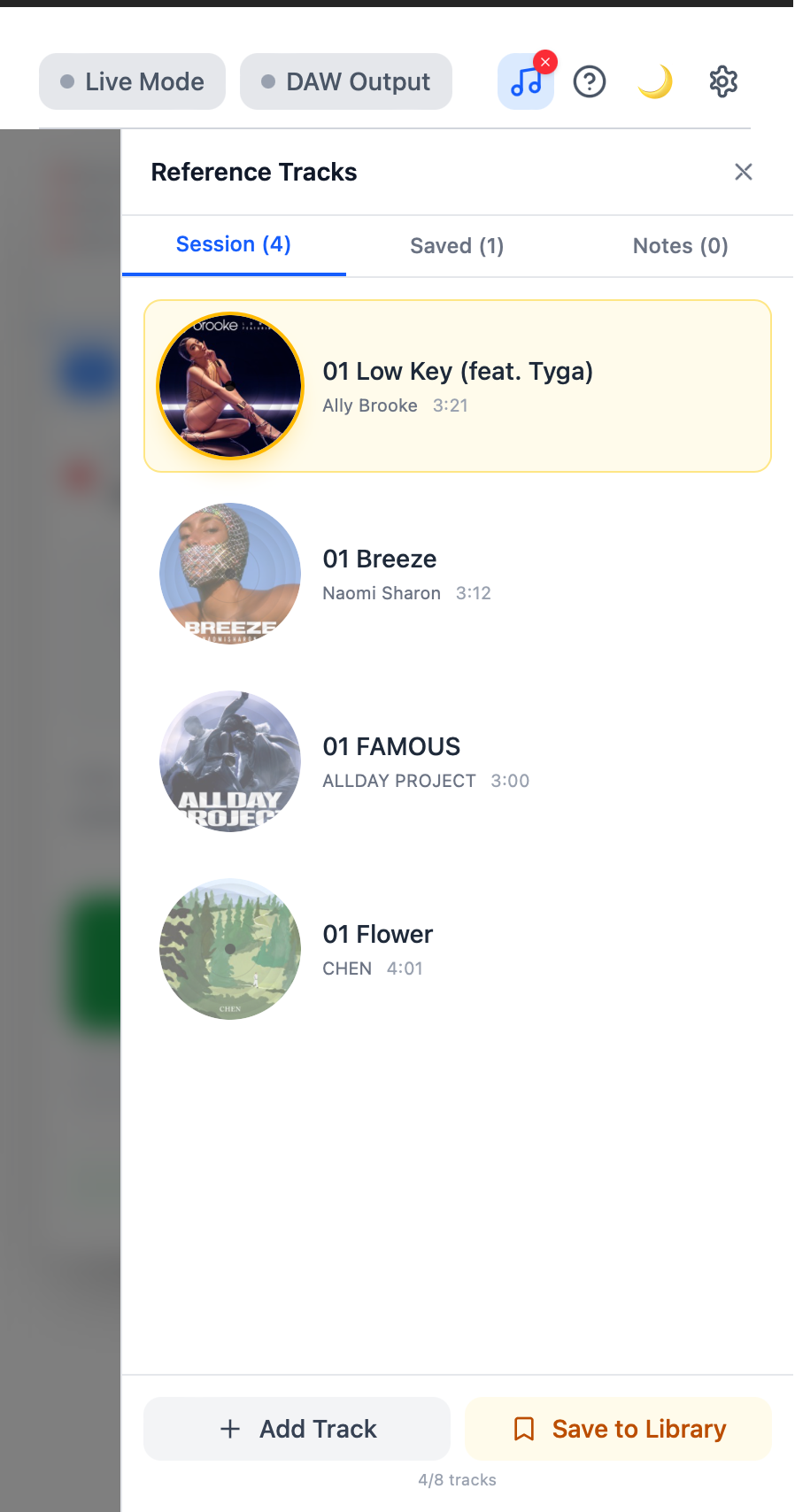
Reference Tracks panel — Session tab with 4 tracks loaded. You can load up to 8 tracks simultaneously.
6.2 A/B Comparison
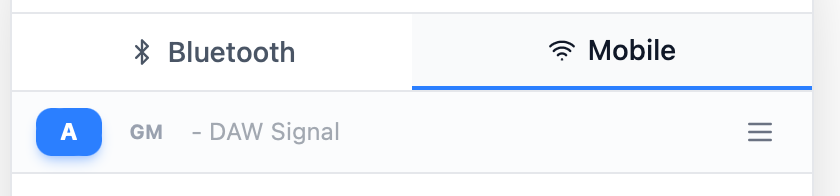
Once a reference track is loaded, a playback bar appears at the bottom of the plugin showing the A/B toggle, volume slider, and track info.
You hear your DAW mix. This is the normal passthrough mode.
You hear the reference track. Your DAW audio is muted and replaced with the selected reference.
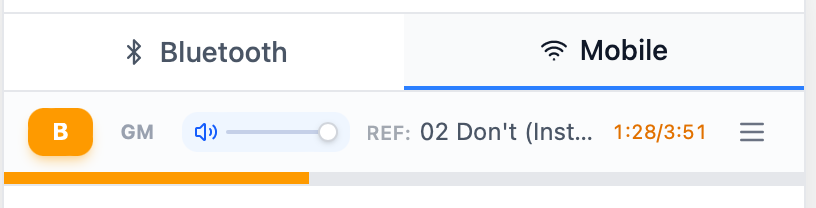
Click the A/B button to toggle instantly. Reference playback automatically syncs with DAW transport — when your DAW plays, the reference plays; when your DAW stops, the reference pauses.
6.3 Gain Matching
Louder audio often sounds "better" — which can fool your judgment when comparing. AirCheck's Gain Match (GM) button automatically levels the playing field.
How to use:
- Play your mix in the DAW for a few seconds (to establish a LUFS reading).
- Click the GM button.
- AirCheck measures both DAW LUFS and reference LUFS (3-second window), then applies an offset so both play at the same perceived loudness.
If the signal is too quiet (below -100 LUFS), gain matching will not activate. Make sure both your mix and the reference track have audible signal before clicking GM.
6.4 Session, Saved & Notes Tabs
The Reference Tracks panel has three tabs:
Session
Shows the reference tracks loaded in your current DAW session. These tracks are saved and restored automatically when you save and reopen your DAW project.
Saved (Reference Library)
Your persistent reference library. Click Save to Library on a session track to add it here. Library tracks are available across all projects — click any saved track to load it into your current session.
Notes (Mobile Feedback)
Notes sent from mobile listeners via the Wi-Fi Streaming feature appear here. When someone listening on their phone wants to suggest a change (e.g., "Kick is too loud"), they can type a note with a timestamp — it syncs to this tab automatically so you can review feedback without leaving your DAW.
6.5 Reference Library
The Reference Library stores your favorite tracks permanently so you can reuse them across any DAW project.
How it works:
- 1. When you save a track, the audio file is copied to AirCheck's internal storage so it won't break if you move or delete the original file.
- 2. Metadata (artist, artwork, tags, notes) is preserved alongside the file.
- 3. When you reopen a project, AirCheck automatically finds saved files even if the original path has changed.
Storage location:
macOS: ~/Library/Application Support/AirCheck/references/
Windows: %LOCALAPPDATA%\AirCheck\references\
6.6 Playback Controls
| Play / Pause | Synced with DAW transport. When your DAW plays, the reference plays automatically. |
| Seek | Click or drag the progress bar to jump to any position in the reference track. |
| Loop | Always on. When the reference reaches the end, it loops back to the beginning seamlessly. |
| Volume | Adjust with the volume slider in the playback bar. Independent of DAW volume and Gain Match offset. |
| Track selection | Click a track in the Session tab to select it. The selected track is highlighted and used for A/B playback. |
6.7 Important Notes
-
⚠
Reference audio does not affect your mix output. When you switch back to A mode, your DAW signal passes through completely unaltered.
-
⚠
Files are decoded entirely into memory at load time. Very long files (over 30 minutes) are rejected to prevent excessive memory usage.
-
⚠
Sample rate changes require reload. If you change your DAW's sample rate, reference tracks will be automatically re-decoded and resampled to match.
7. Use Cases
Reference Monitoring during Arrangement and Mixing
Quickly switch to AirPods to simulate the consumer listening experience. Check how your mix translates to the most popular consumer headphones without interrupting your workflow.
8. Technical Specifications
| Supported Sample Rates | 44.1kHz / 48kHz / 96kHz / 192kHz |
| Sample Rate Conversion | Automatic (when DAW and device sample rates differ) |
| Bluetooth Latency | Approx. 60ms (Hardware limitation) |
| Total Latency (Standard Mode) | Approx. 100-120ms |
| Total Latency (Live Mode) | Approx. 80-100ms |
| Mobile Streaming Latency | Approx. 100ms adaptive (as low as ~60ms) |
| Audio Channels | Stereo |
9. Trial & Licensing
Demo Mode
Unlicensed copies of AirCheck run in Demo Mode with the following limitation:
- A 1-second burst of white noise is inserted every 30 seconds of playback.
- This is only calculated during active audio playback (no white noise when music is stopped).
Purchase a license to remove this limitation and unlock full, uninterrupted monitoring.
Activation
Option A: Online Activation (Recommended)
- 1. Click "Activate" on the plugin interface.
- 2. Enter your license key.
- 3. Click "Confirm" to complete activation.
Option B: Offline Activation
If your computer cannot reach the license server (firewall, proxy, or no internet), you can activate offline:
- 1. Click the "Offline Activate" button at the bottom of the plugin window.
- 2. A dialog will appear showing your Machine ID (a 16-character code unique to your computer).
- 3. Send your license key and Machine ID to support@sugoiaudio.com and we will generate your offline code
- 4. We will reply with an offline activation code. Enter it in the dialog to activate.
10. Update Notifications
AirCheck automatically checks for new versions when you open the plugin. This check runs at most once every 24 hours and does not affect performance or startup time.
How It Works
- • When a new version is available, a notification appears in the plugin's Settings panel showing the new version number and a summary of changes.
- • Click Download to open the download page in your browser.
- • If your version is current, the Settings panel will show "Up to date" next to the version number.
- • The check is completely silent if it fails (e.g., no internet). It will never interrupt your session.
11. FAQ
Will this affect my Export/Bounce? +
No! AirCheck automatically bypasses itself during export, ensuring your rendered audio files are normal and unaffected.
Can I use multiple instances of AirCheck simultaneously? +
We recommend using only one instance of AirCheck on the Master track. Using multiple instances may cause unpredictable behavior.
Does it support other Bluetooth headphones? +
AirCheck has built-in detection for 60+ Bluetooth brands. See the product page for the full compatibility list. Professional audio interfaces (Focusrite, Universal Audio, MOTU, RME, Apogee, PreSonus, SSL, Steinberg, Arturia, etc.) are excluded by design to prevent routing conflicts with your studio setup. Since v1.1.1, you can also manually select any output device from Settings — even if your headphones aren't in the built-in brand list.
Why is there latency? +
Latency is primarily caused by Bluetooth transmission protocol limitations (~100ms, typically 80–150ms depending on device and codec). This is a characteristic inherent to Bluetooth audio technology.
Does Mobile Streaming require internet? +
No! Mobile Streaming works entirely over your local network (LAN). No internet connection is required.
How many devices can connect to Mobile Streaming? +
Up to 8 devices can connect and listen simultaneously. This is great for band rehearsals, client reviews, or sharing your mix with multiple collaborators in the same room.
Mobile Streaming has noise/artifacts when VPN is on? +
This is expected behavior. When a VPN is active, it routes all network traffic—including local LAN connections—through the VPN tunnel. This adds latency and can cause packet loss, resulting in audio noise or stuttering.
Solutions:
- 1. Turn off your VPN while using Mobile Streaming.
- 2. If your VPN supports split tunneling, configure it to exclude local network traffic.
Mobile Streaming works entirely over your local network—no internet or VPN is needed.
Can't connect to Mobile Streaming on hotel or public Wi-Fi? +
Hotel, airport, and coffee shop Wi-Fi networks often use client isolation (also called AP isolation). This security feature prevents devices on the same network from communicating with each other—which blocks Mobile Streaming.
How to tell:
- • The Wi-Fi requires a login page (captive portal) or room code to connect.
- • Your phone can scan the QR code but the player never connects.
Solution:
Use your phone's hotspot instead. Connect your computer to your phone's hotspot, then use Mobile Streaming as usual. This creates a private local network where both devices can communicate freely.
12. Troubleshooting
Basic Troubleshooting Steps
-
1
Reconnect AirPods
Disconnect your AirPods in the system settings and reconnect them.
-
2
Click Reconnect
Click the "Reconnect" button on the plugin interface.
-
3
Reload the Plugin
Remove the plugin from the slot and load it again.
-
4
Check System Audio Settings
Confirm that AirPods are selected as the system default output.
-
5
Restart DAW
Close and reopen your DAW.
Windows Users: ASIO Driver Required
AirCheck requires your DAW to use an ASIO audio driver on Windows. It does not work with DirectSound or WASAPI as the DAW audio driver.
When your DAW uses DirectSound, Windows locks the audio device exclusively, preventing AirCheck from routing audio to your Bluetooth headphones independently.
How to fix:
- 1. Open your DAW's audio settings (Preferences / Options).
- 2. Change the audio driver from DirectSound or WASAPI to ASIO.
- 3. Select your audio interface's ASIO driver (e.g., Focusrite ASIO, Steinberg UR ASIO).
- 4. If you don't have a dedicated audio interface, install ASIO4ALL (free universal ASIO driver).
Common symptoms of using DirectSound: AirCheck shows "Connected" but no audio reaches your Bluetooth headphones, or you hear crackling/distortion.
License Activation Issues
If you see "Invalid response from server" or cannot activate your license:
- Make sure you are running v1.0.9 or later.
- Check that your firewall or antivirus is not blocking connections to
api.lemonsqueezy.com. - Disable any VPN and try again.
- If online activation still fails, use Offline Activation: click the "Offline Activate" button and send your Machine ID to support@sugoiaudio.com. We will reply with an offline activation code.
WiFi Streaming Noise or Artifacts
If you experience noise, crackling, or audio artifacts during WiFi streaming (Mobile mode):
- 1. Press Stop Listening on your mobile device.
- 2. Press Start Listening again.
This resets the audio stream and usually resolves the issue immediately.
Recommended: Use 5GHz Wi-Fi for Best Experience
If you frequently experience audio dropouts, crackling, or lag during Mobile Streaming, your Wi-Fi frequency band may be the cause. We strongly recommend connecting both your computer and phone to a 5GHz Wi-Fi network.
5GHz (Recommended)
- Faster (up to 1300 Mbps)
- Low interference — fewer devices use this band
- Lower, more stable latency
- Shorter range (best within same room)
2.4GHz (Not Recommended)
- Slower (up to 600 Mbps)
- High interference — shared with Bluetooth, microwaves, baby monitors, and many IoT devices
- Higher latency, fluctuates
- Longer range (works through walls)
Why 2.4GHz causes problems: The 2.4GHz band is extremely crowded. Bluetooth devices, microwave ovens, wireless keyboards, and dozens of smart home devices all compete on this same frequency. This congestion causes packet loss, which results in audible dropouts and crackling in real-time audio streaming. The 5GHz band has significantly more channels and far less interference, making it ideal for low-latency audio.
Tip: Most modern routers broadcast both bands. Look for your network name with a "5G" or "5GHz" suffix in your Wi-Fi settings, or check your router's admin page to ensure band separation is enabled.
If the Issue Persists
Please contact our technical support team with the following information:
- Operating System Version
- DAW Name and Version
- Description of the problem and steps to reproduce it