SugoiDimension User Manual
Complete guide to the analog bucket-brigade dimension chorus — width and movement without the wobble.
Version 1.0.0
1. Introduction
What is SugoiDimension?
SugoiDimension is an analog bucket-brigade (BBD) dimension chorus. It widens any source and adds gentle three-dimensional stereo movement while the center of your sound stays solid — no seasick pitch wobble.
The movement comes from a modeled MN3007-class bucket-brigade delay line — the circuit classic analog dimension units were built on. Charge passed stage to stage adds soft saturation and fine grain, and four-pole filters shape the top end the way the hardware did. The result is width that sounds like a piece of studio gear, not a digital effect.
Formats: AU, VST3, AAX, and Standalone on macOS.
Key Features
-
Analog BBD Engine
Modeled bucket-brigade delay lines with the soft saturation, fine grain, and four-pole filtering of the original hardware.
-
Four One-Button Dimension Modes
Subtle, Classic, Wide, and Maximum. One click sets the amount of width and movement — no menu diving.
-
Three Input Modes
Mono turns a mono source into wide stereo, Stereo processes an existing L/R image, and M/S keeps the center mono-safe while working on the sides.
-
Advanced Panel
LFO Shape, Color, Speed, Depth, Lo Cut, Hi Cut, Width, and Mix — everything you need to fine-tune a mode, hidden until you want it.
-
A/B Compare and Presets
Two independent settings slots with one-click copy, plus a preset browser for saved starting points.
2. Quick Start
-
1
Insert SugoiDimension on a track
Any source works: synths, guitars, keys, pads, vocals, backing vocals, or a bus.
-
2
Pick an Input mode
Stereo is the default. Use Mono if the source is mono and you want it fanned out to stereo; use M/S to keep the center untouched.
-
3
Click a Dimension Mode (1–4)
1 is subtle, 4 is maximum. Mode 2 is the classic chorus sound and the default.
-
4
Done — open Advanced to fine-tune
Click the ADVANCED strip if you want to adjust speed, depth, tone, width, or the dry/wet blend.
3. Interface Overview
SugoiDimension is laid out like a piece of rack hardware. The top panel holds everything you need day to day; the Advanced panel below it holds the fine-tuning controls.
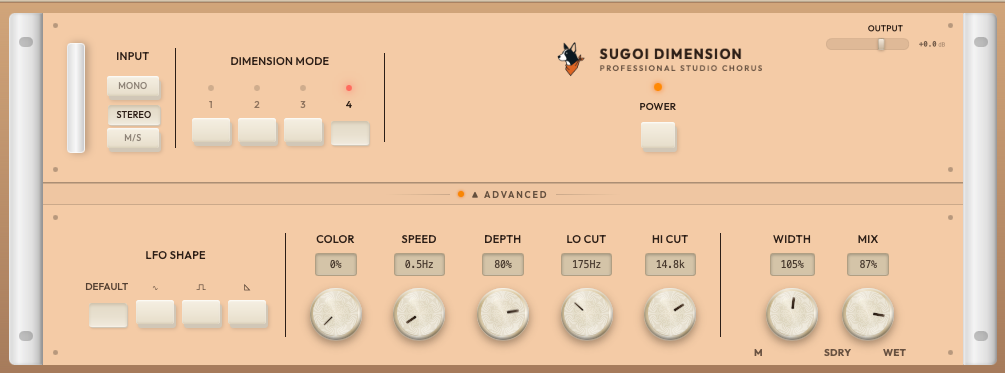
The full faceplate with the Advanced panel open.
Top Panel
From left to right:
- Input: Mono / Stereo / M/S buttons that set how the source is read before widening.
- Dimension Mode: Buttons 1–4, each a complete character preset for width and movement. The lit indicator above a button shows the active mode.
- Power: Engages or bypasses the effect.
- Output: Final output trim slider, top right.
- A/B + Copy: Two independent settings slots for comparing options.
- Preset: The preset browser. “Manual” means you are on your own unsaved edits.
Advanced Strip
The thin horizontal strip labelled ▲ ADVANCED between the two panels. Click it to open or close the Advanced panel. A brass dot on the strip indicates the panel state.
Advanced Panel
The lower rack row, revealed by the Advanced strip:
- LFO Shape: Four buttons — Default plus sine, square, and triangle waveforms.
- Color / Speed / Depth / Lo Cut / Hi Cut: Five knobs with value readouts that shape the character of the modulation and the wet signal.
- Width / Mix: Two knobs on the right that set the stereo spread of the effect and the dry/wet blend.
See Section 5 for every parameter's range and default.
4. Top Panel Controls
Input
The Input mode sets how the source is read before widening. Default: Stereo.
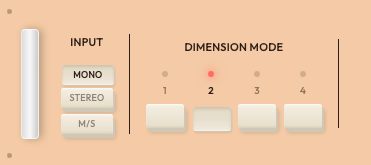
Input modes and Dimension Mode buttons.
| Mode | What it does |
|---|---|
| Mono | Turns a mono source into wide stereo. Use this on mono synths, guitars, or vocals you want fanned out into the stereo field. |
| Stereo | Processes the existing left/right image. The default, and the right choice for most stereo sources. |
| M/S | Processes mid and side separately, giving width control that keeps the center mono-safe. Good for buses and anything with important low end or a centered lead. |
Dimension Mode
Four one-button character presets that set how much width and movement you get. Default: Mode 2.
| Mode | Character |
|---|---|
| 1 — Subtle | A little width and air. Safe on almost anything, including sources that are already busy. |
| 2 — Classic | The go-to “that chorus” sound. The default mode. |
| 3 — Wide | Lush spread for pads, keys, and layers. |
| 4 — Maximum | The widest, most dramatic movement the plugin can do. |
Other Top Panel Controls
| Control | What it does |
|---|---|
| Power | Engages or bypasses the effect. The LED above the button shows the current state. |
| Output | Final output trim, −12 to +6 dB (default 0 dB). Use it to level-match against bypass. |
| A / B | Two independent settings slots. Switch between them to compare. Copy copies A to B so you can tweak from a known starting point. |
| Preset | Opens the preset browser. “Manual” means the current settings are your own unsaved edits. |
5. Advanced Panel
Click the ▲ ADVANCED strip to open the fine-tuning panel. Every Dimension Mode sets these parameters for you; the Advanced panel is where you adjust them by hand.
| Control | Range (default) | What it does |
|---|---|---|
| LFO Shape | Default / Sine / Square / Triangle (Default) | The modulation waveform driving the BBD delay time. Default is the smooth classic voicing; Sine is cleaner; Triangle is more linear; Square gives a stepped, vibrato-ish motion. |
| Color | 0–100% (0%) | Analog saturation and warmth of the bucket-brigade path. Higher settings add more grain and soft harmonic drive. |
| Speed | 0.1–10 Hz (0.25 Hz) | LFO rate — how fast the movement cycles. |
| Depth | 0–100% (50%) | Modulation depth — how far the delay time swings. |
| Lo Cut | 20–500 Hz (20 Hz) | High-pass filter on the wet/dimension signal. Raise it to keep the low end tight and mono. |
| Hi Cut | 2–20 kHz (20 kHz) | Four-pole low-pass on the wet signal — tames the top end the way the hardware did. |
| Width | 0–200% (100%) | Stereo width of the effect. 0% collapses the effect to the center (mono); 200% is maximum spread. |
| Mix | 0–100% (100%) | Dry/wet blend, from fully dry to fully wet. |
Tip: Changing a Dimension Mode resets the character to that mode's voicing. If you have dialled in Advanced settings you want to keep, save them as a preset or park them on the B slot before you switch modes.
6. Tips & Recipes
Mono synth or guitar into wide stereo
Set Input to Mono and click Mode 3. The mono source fans out into a wide image while the center stays put. Pull Mix back if the part sits behind a lead.
Width on a bass that stays mono-safe
Use M/S input and raise Lo Cut to around 120–200 Hz. The fundamentals stay centered and mono-compatible; only the upper harmonics get width.
Subtle glue on a bus
Mode 1 with Mix at 20–35%. Enough movement to make a keys or backing-vocal bus feel alive without anyone hearing “chorus.”
Drama on a pad
Mode 4, then push Depth and Speed up in the Advanced panel. For a darker, more vintage take, add Color and bring Hi Cut down toward 8–12 kHz.
7. Installation
macOS
- 1. Download the SugoiDimension installer from the download page.
- 2. Double-click the installer and follow the on-screen instructions. All formats install to the standard locations automatically.
- 3. Open your DAW and rescan plugins if needed. The plugin appears as “SugoiDimension” by “Sugoi.”
- 4. Your 30-day free trial starts automatically — full functionality, no limitations.
Installation Paths:
AU: ~/Library/Audio/Plug-Ins/Components/SugoiDimension.component
VST3: ~/Library/Audio/Plug-Ins/VST3/SugoiDimension.vst3
AAX: /Library/Application Support/Avid/Audio/Plug-Ins/SugoiDimension.aaxplugin
Tip: If the plugin does not appear after installation, rescan your plugin folder. Logic Pro rescans automatically on launch. In Ableton Live, go to Preferences > Plug-ins > Rescan. In Pro Tools, restart the application to pick up new AAX plugins.
8. System Requirements
macOS
- Plugin Formats: AU (Audio Unit), VST3, AAX
- Standalone: Standalone application included
- Host: Any 64-bit DAW supporting AU, VST3, or AAX (Logic Pro, Ableton Live, FL Studio, Reaper, Cubase, Studio One, GarageBand, Pro Tools, etc.)
9. Trial & Licensing
30-Day Free Trial
- Full functionality during the trial — no feature limits.
- No credit card required. The trial starts automatically on first launch.
- Get the installer from the download page.
Purchasing a License
SugoiDimension is a one-time purchase of $14.99 (reg. $19.99). No subscription. Payment is processed securely through Lemon Squeezy.
Buy SugoiDimension — $14.99Activating Your License
- 1. After purchase, your license key arrives by email.
- 2. Open SugoiDimension and go to the plugin's settings.
- 3. Paste the license key and activate.
10. FAQ & Troubleshooting
The plugin doesn't show up in my DAW +
Rescan your plugin folder. Logic Pro rescans on launch; in Ableton Live go to Preferences > Plug-ins > Rescan; in Pro Tools, restart the application.
If the AU still doesn't appear in Logic, refresh the Audio Unit registrar from Terminal and restart your DAW:
killall -9 AudioComponentRegistrar
I hear no width on a mono track +
Set the Input mode to Mono. In Stereo mode a mono source has no left/right difference to work with; Mono mode fans the source out into stereo. Also make sure the track itself is routed to a stereo output in your DAW.
It sounds too wobbly +
Lower Depth and Speed in the Advanced panel, or switch to Mode 1 or 2. Setting LFO Shape to Sine also gives a cleaner, smoother motion. If the wobble sits in the low end, raise Lo Cut so the effect stays out of the bass.
How is this different from a normal chorus? +
A normal chorus modulates pitch, so you hear the whole signal wobble. SugoiDimension runs paired bucket-brigade delay lines that move in opposition — the center of your sound stays fixed while only the stereo edges shift. You get width and 3D movement with no audible pitch wobble.
My trial expired — what now? +
Purchase a license ($14.99, one-time), then enter the license key in the plugin's settings. Your sessions and settings are untouched — activation picks up right where the trial left off.
If the Issue Persists
Contact our support team with the following information:
- Operating system version (e.g., macOS 14.2)
- DAW name and version
- Plugin format used (AU, VST3, or AAX)
- Description of the problem and steps to reproduce it